
Explore Sports.
Enjoy Every Moment.
Discover Sportzfy installation guides, helpful tips, and troubleshooting solutions for compatible devices.
Download Sportzfy APKSportzfy Match Audio and Video Out of Sync? How to Fix It
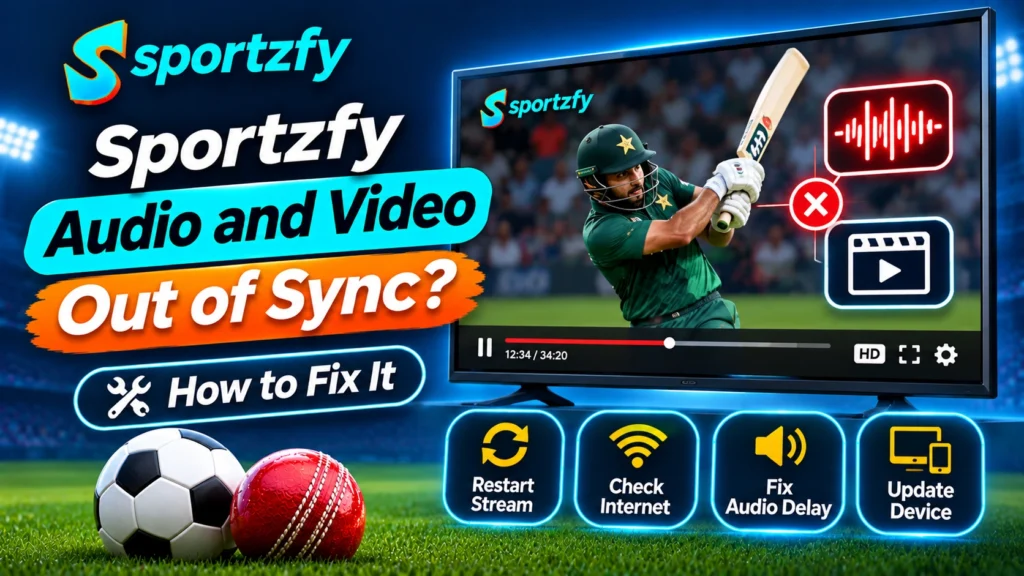
A live match feels strange when commentary arrives late. You may see a goal, wicket, or boundary before hearing it. This mismatch can happen because of stream processing, device performance, or audio output delays. The good news is that you can narrow down the cause without changing every setting.
First, Identify Where the Delay Starts
Before adjusting anything, notice how the problem behaves. Does it happen on every channel, or only one match? Does the sound lag behind the picture, or does the picture freeze while audio continues? These details help you avoid unnecessary changes. If only one stream has the issue, the source may be responsible. If every stream behaves similarly, check your device or connection first.
Try These Checks in Order
1. Restart the Current Stream
Pause the match briefly, then resume playback. If the delay remains, leave the stream and open it again. This refreshes the playback session and may clear a temporary buffering issue. When using Sportzfy, avoid repeatedly switching channels within a few seconds. Give each stream time to load before judging its audio.
2. Compare Another Channel or Match
Open a different live channel for a short test. If its sound matches the picture, the original stream may have a temporary broadcast delay. However, if the same mismatch appears everywhere, continue checking your device. This simple comparison is more useful than changing several settings at once. It also helps determine whether Sportzfy 2025 playback or the particular broadcast causes the problem.
3. Check Bluetooth Audio Latency
Bluetooth headphones and speakers can introduce noticeable sound delay. This often happens because audio travels wirelessly and gets processed before playback. Disconnect Bluetooth and test the device’s built-in speaker. If synchronization improves, the accessory is likely causing the delay. You can also reconnect it, check its companion settings, or try another audio device.
For live sports, wired headphones may provide a more immediate audio response.
4. Reduce Background Activity
Older or busy devices may struggle when several apps run together. Close unused apps, downloads, screen recorders, and background tasks. Then reopen Sportzfys and test the stream again. Also, avoid switching between demanding apps during playback. Freeing memory and processing resources can help reduce stutters that make audio and video appear mismatched.
5. Test Your Internet Connection
A weak or unstable connection can interrupt video delivery while audio continues—or the reverse. Move closer to your Wi-Fi router, pause large downloads, and disconnect devices that are consuming bandwidth. If possible, compare Wi-Fi with mobile data. A stable connection matters more than simply having a high advertised speed. When the stream buffers frequently, synchronization may become inconsistent.
Device Settings Worth Checking
Android Phones and Tablets
Restart your phone and make sure its system software is updated. If the issue continues, clear the app cache through Android settings. Choose the cache option only; clearing storage may remove app data or preferences. On some devices, battery-saving modes restrict background processing. Temporarily disable aggressive battery restrictions for sportzfy live while testing playback. Restore your preferred battery settings afterward.
Android TV and Smart TV
TV audio processing can add delay. Open your television’s sound menu and look for an audio delay, digital output, or synchronization setting. Names differ between manufacturers, so do not assume every TV has the same option. Try turning off extra sound processing temporarily, such as surround effects or audio enhancement. Test the match again, then restore features one by one if needed.
If you use a soundbar, compare TV speakers against the soundbar. A mismatch that appears only through one output points toward that device or its connection.
What Each Result Usually Means
| Test result | Likely cause | Next step |
|---|---|---|
| One channel is out of sync | Stream or broadcast delay | Try another stream and check again later |
| All channels have the same delay | Device or audio output | Restart device and test another speaker |
| Bluetooth causes the mismatch | Wireless audio latency | Use built-in speakers or another output |
| Delay appears with buffering | Unstable connection | Improve Wi-Fi and pause downloads |
| TV speakers work, soundbar does not | Soundbar processing or connection | Review soundbar sync settings |
Avoid These Unhelpful Fixes
Do not install random “audio sync fixer” apps. They cannot reliably correct delays inside every live stream. Likewise, avoid downloading an unfamiliar APK just because playback is inconsistent. Reinstalling the app should not be your first step. Start with stream comparison, audio output, and connection checks. If you reinstall sportzfy apk for android, use a source you trust and confirm that the version is compatible with your device.
When the Problem Is Not on Your Device
Sometimes the broadcast itself has a delay. Live streams may pass through several stages before reaching viewers. Therefore, a short mismatch can occur even when your internet and hardware work properly. If only one event is affected, wait a little and test again. If the issue continues across multiple streams and devices, the service or stream source may need attention. A recurring delay in sportzfy new does not automatically mean your device is faulty.
Final Check Before Watching Again
Use this quick sequence: reopen the stream, test another channel, disconnect Bluetooth, close background apps, and check your network. On a TV, compare built-in speakers with external audio equipment. These checks help you identify the actual cause instead of guessing. Once playback becomes stable, sportzfy tv app should feel more natural to watch. Keep your device updated, avoid unnecessary background activity, and remember that some broadcast delays are outside your control.